Open Settings → Branding to manage your organization's logo and email sender name. Opening the page and changing settings requires org:manage; loading saved branding values also requires org:view. Org Admins hold both permissions by default.
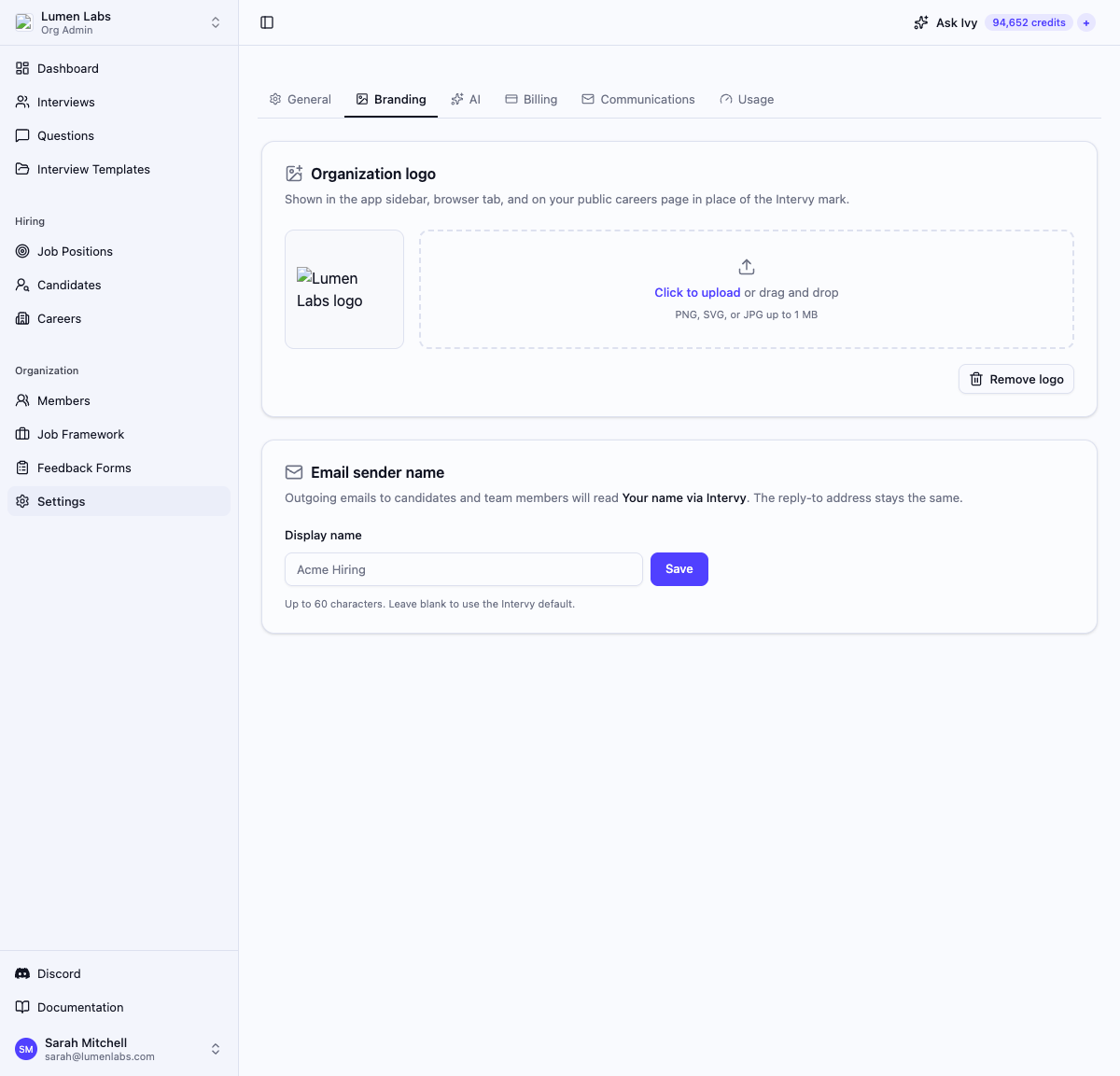
Organization logo
Your logo appears in the app sidebar and organization browser tab. If your careers page is published, its header and browser tab also use the logo. The careers footer still links to Intervy.
Uploading a logo
- Open Settings → Branding.
- In the Organization logo section, click Click to upload or drag and drop a file into the dashed area.
- Select a PNG, SVG, or JPG file up to 1 MB.
The preview on the left updates immediately after the upload succeeds.
Removing the logo
Click Remove logo below the upload area to remove the saved logo. Your public careers header stops showing it on subsequent visits. The default careers host uses Intervy's favicon; a custom domain without a logo has no favicon.
Email sender name
On the Scale plan you can set a sender display name for organization invitations and candidate emails sent from your team's workspace. Recipients see Your name via Intervy. This changes the sender name, while the reply-to address stays the same. Intervy's own welcome emails retain their standard sender.
To set a sender name:
- Open Settings → Branding.
- In the Email sender name section, type a name in the Display name field. The preview in the card description updates as you type.
- Click Save.
The name can be up to 60 characters. Leave the field blank and click Save to restore the standard Piotr from Intervy sender.
Permissions reference
| Action | Permission | Default roles |
|---|---|---|
| Read saved branding settings | org:view | AdminStaffing |
| Open Branding / upload or remove logo / save email sender name | org:manage | Admin |
Troubleshooting
"Could not upload logo. Try PNG, SVG, or JPG under 1 MB." — The upload request failed. Check that the file is PNG, SVG, or JPG and no larger than 1 MB, then try again. A network failure can also cause this message.
"Could not save sender name" — The display name could not be saved. Ensure the name is 60 characters or fewer and try again.
An upgrade prompt appears instead of the controls — Branding changes require the Scale plan. Use the upgrade action to review your options.