Ivy can scan your question bank, compare each question against your organization's competency matrix, and return a list of suggested competency tags. Ivy never writes tags until you save: suggestions start accepted, so discard any you don't want before you select Save.
Prerequisites
Enabling the feature
- Open Organization Settings at
app.intervy.ai/org/<your-org-slug>/settings/org. For the Communications shortcut and its access requirements, see Opening the page. - Find the AI competency classification card directly on that page.
- Toggle Enable AI classification for this organization to on.
Once enabled, the Classify banner appears on the Questions page (when five or more questions are untagged and you have not dismissed it) for members with questions:update, questions:view and org:view. This setting does not control Ivy chat: members with questions:update can request classification there whether the setting is on or off.
Running a bulk classification from the Questions page
Step 1 — Open the classify dialog
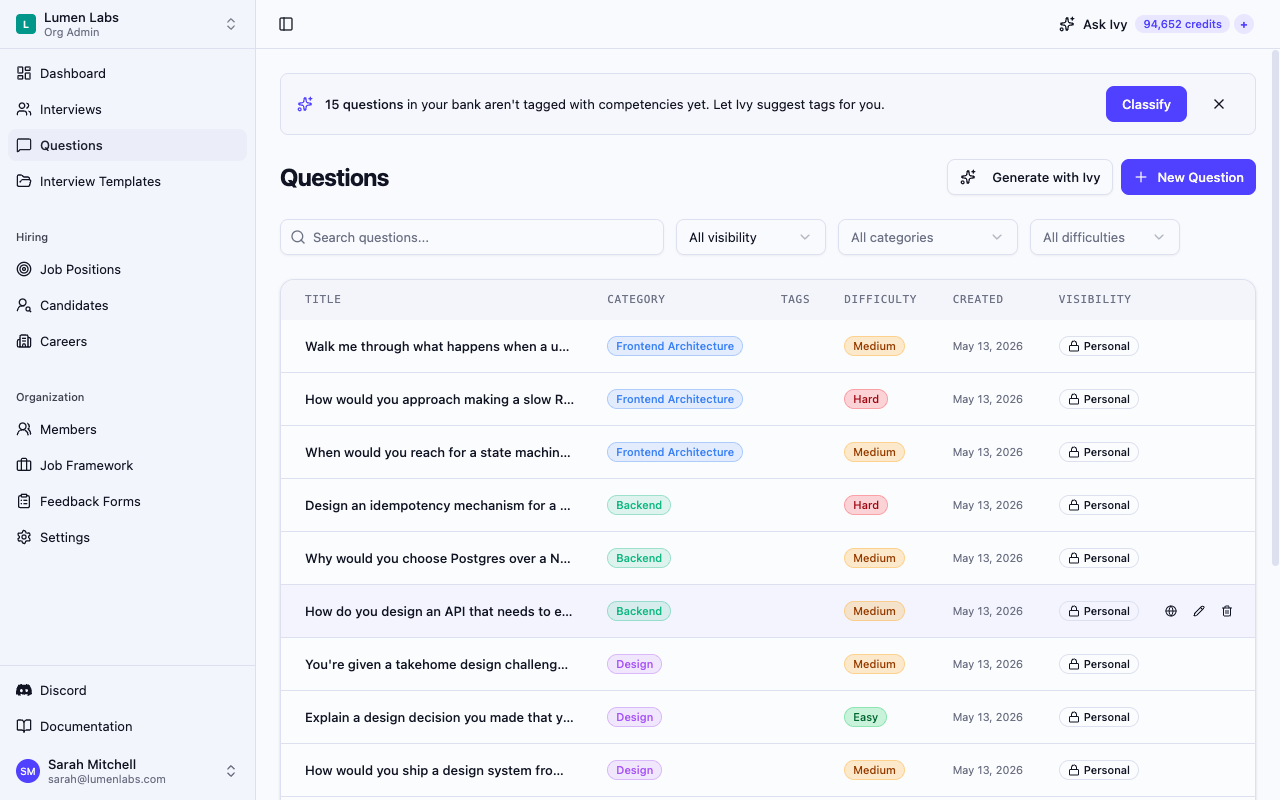
Unless you have dismissed it, a banner appears when five or more questions in your bank have no competency tags. You will see it at the top of the Questions page:
N questions in your bank aren't tagged with competencies yet. Let Ivy suggest tags for you.
Select Classify to open the dialog. Dismissing the banner removes it and the Questions-page entry to bulk classification for your organization in this browser. You can still ask Ivy to classify questions in chat.
Step 2 — Choose your scope and job roles
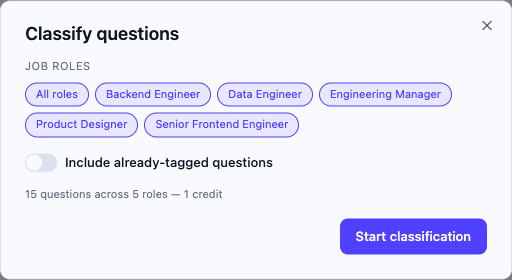
The Classify questions dialog opens in setup view.
Scope controls which questions Ivy analyzes:
| Option | What Ivy analyzes |
|---|---|
| Untagged questions | Only questions with no competency tags (default) |
| All questions | Every question in the bank, including already-tagged ones |
Toggle Include already-tagged questions to switch between these two options. The All questions option currently analyzes already-tagged questions, but the bulk review shows only untagged questions: already-tagged questions are still analyzed and charged, but their suggestions are not shown. To review and save new suggestions for already-tagged questions, use Ivy chat instead.
Select one or more job roles to scope the competency suggestions. Ivy maps each question against the competencies defined for the roles you pick. You must select at least one role before starting.
Step 3 — Start the classification
Select Start classification. While Ivy works, the dialog shows "Classifying N questions…", where N is the number of untagged questions, even if you included already-tagged ones. Selecting Cancel without charge only returns you to the setup view: a classification that has already started still finishes and is charged, and when it finishes the dialog switches to the review view. Wait for it to finish rather than starting again, because each run is charged.
Step 4 — Review suggestions
Once Ivy finishes, the dialog switches to review mode. Each row shows:
- The question title
- The suggested competency tags; hover over a tag to see its confidence level (High, Medium, or Low)
- The Current column, which reads None for the untagged questions shown here
You can:
- Accept or discard individual suggestions by toggling each competency chip.
- Keep all or Discard all for an entire question row at once.
- Toggle Replace existing tags if you want accepted suggestions to overwrite the question's current tags rather than being merged with them. Bulk review lists only untagged questions, so this option does not change the result there. Discarding every suggestion for a question leaves that question out of the save.
No changes are written until you confirm in the next step.
Step 5 — Save
Select Save N questions to apply the accepted suggestions. A confirmation toast appears, with an Undo option that reverts all tags to their previous state.
Running a classification via Ivy
You can also ask Ivy to classify questions directly from the chat panel. Select + Context above the message box, search for Job Roles, and select the roles you want to use. Selected roles appear as removable pills and remain attached for the active chat. This picker supports Job Roles only and requires job_roles:view; running classification still requires questions:update.
Ivy chooses classification roles in this order:
- Roles explicitly specified for classification take priority.
- Otherwise, the currently attached Job Roles provide the defaults.
- Without either, Ivy asks which roles you want to use in conversation.
For a different role Ivy does not already know, attach it through + Context, or remove the current role pills to choose through conversation. Selecting or removing a pill alone never starts a paid classification. The resulting classification opens as a workspace draft; no tags are applied until you review and save it.
Closing and reopening the same chat keeps the selected roles. Removing one leaves it out of subsequent requests without deleting prior conversation history. Clear chat, changing organizations, reloading, or opening Ivy from a different kind of page (which starts a fresh chat) clears the selection. Intervy rechecks access when you send; unavailable roles are removed with guidance to review the selection and try again. See Attach Job Roles to chat.
Credit usage
Classifications are charged according to AI usage. Before a classification starts, Intervy sets aside up to 5 credits from your balance. When it finishes you are charged what it actually used and the rest goes back to your balance; if the cost is more than your balance, you are charged what your balance covers. With no credits available, the classification does not start. In Ivy chat the message itself is also charged and is set aside first, so a very low balance can leave nothing for the classification. If Ivy's AI provider fails, everything set aside goes back to your balance. Every classification that runs is charged, including a repeat of an earlier one and one that includes new or edited questions. Credits from a monthly plan allowance that expired in the meantime do not come back if a classification fails.
BYOK is available on Growth and Scale, or with an active access grant that includes BYOK. An Org Admin selects the organization’s provider in Settings → AI, where each member adds their own personal API key. With eligible BYOK selected and your key saved, classifications use your key, are billed by your API provider, and deduct no Intervy credits. Without your personal key, bulk classification uses Intervy’s AI and credits instead; Ivy chat requires your key before it can run. If BYOK access expires, classification uses Intervy’s AI and credits.
Selecting specific questions via Ivy
When you ask Ivy to classify a specific set of questions (for example, "classify questions 12, 15, and 20"), Ivy passes only those question IDs to the classification engine. The results appear as a workspace draft that you review and save, separately from the Questions-page dialog.
Permissions reference
| Action | Permission | Default roles |
|---|---|---|
| Read questions and the untagged summary | questions:view | AdminStaffingInterviewer |
| View Job Roles for bulk setup or attach them to Ivy chat | job_roles:view | AdminStaffingInterviewer |
| Run AI classification | questions:update | AdminStaffing |
| View organization settings and the classification flag | org:view | AdminStaffing |
| Enable / disable AI classification for the organization | org:manage | Admin |
Troubleshooting
The classify banner or button does not appear — AI competency classification may be disabled for your organization. Ask an Org Admin to enable the AI competency classification card directly on Organization Settings. You need questions:update, questions:view and org:view for the Questions-page controls to appear; choosing roles in bulk setup also needs job_roles:view. If you dismissed the banner or fewer than five questions are untagged, ask Ivy in chat instead: it can classify untagged questions, already-tagged questions, or specific question IDs.
"Classification failed. Please try again." — The request failed. Try again in a moment; if it keeps failing, check that your organization has credits.
Start classification is disabled — Select one or more job roles in the setup step before starting. You need job_roles:view and at least one job role in your organization to choose any.