The Audit page shows recorded AI usage across your organization: calendar-month summary cards, breakdowns by activity type, model and member, and a filtered activity log with CSV export.
Overview
From your organization settings, click View AI usage on the AI usage card. The page title is Audit. Three summary cards show calendar-month figures regardless of your filters; the breakdowns and activity log use the filters below them.
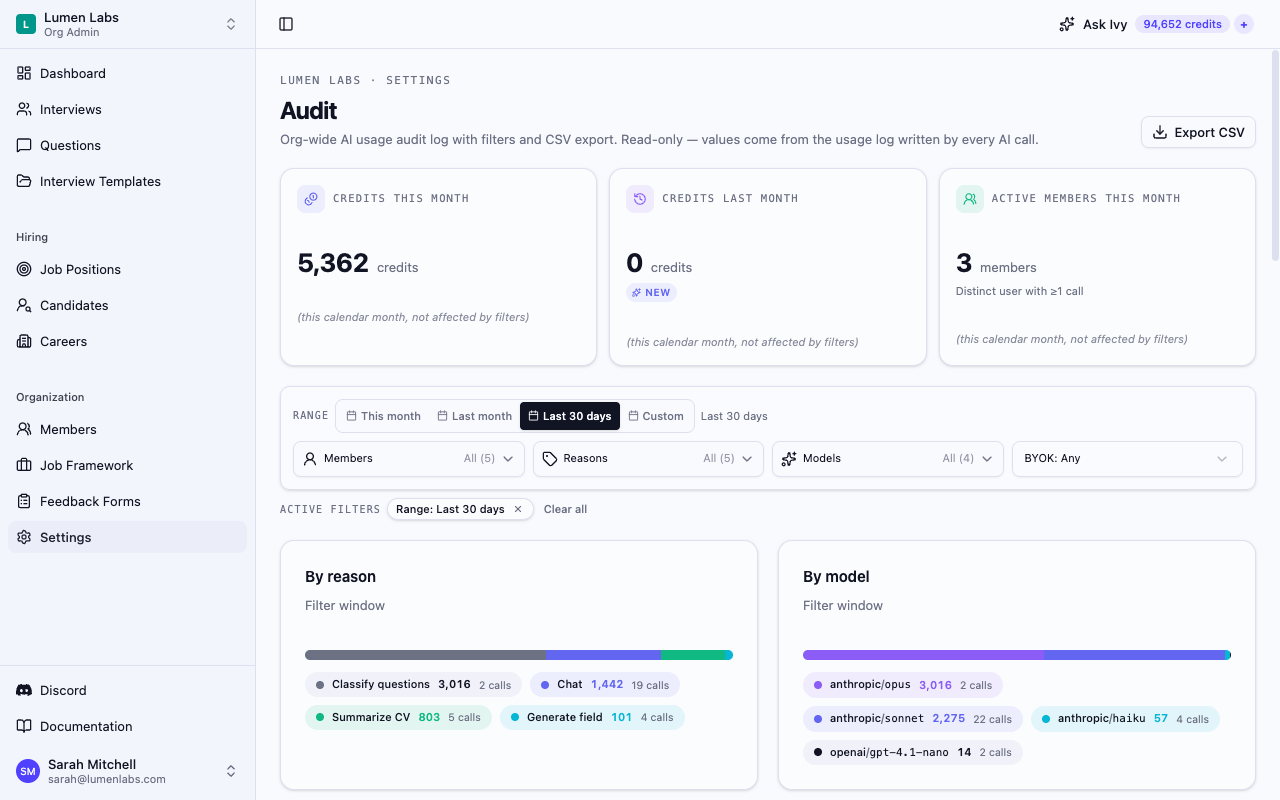
Summary cards and breakdowns can reuse results for five minutes, including Last 30 days. A reload during that time can show the earlier breakdown even after a new call appears in the activity log. Reload after the cached result expires to see refreshed totals. The activity log and CSV export are loaded separately.
Summary cards
Three cards appear at the top:
- Credits this month — credits consumed in the current calendar month.
- Credits last month — credits consumed in the previous calendar month, with a delta comparing this month against last month: a green arrow up, a red arrow down, flat when unchanged, or new when this month has usage and last month had none.
- Active members this month — distinct members with at least one logged call in the current calendar month.
Each card carries the note "this calendar month, not affected by filters". The Credits last month value still refers to the previous month.
Filter bar
Filters narrow the breakdowns and activity log without changing the summary cards.
Date range
Choose This month, Last month, Last 30 days or Custom. Custom reveals Since and Until date pickers. Fill both dates to load that range. The selected Until date is included.
Additional filters
- Members — choose one or more team members.
- Reasons — choose Chat, Generate field, Summarize CV, Classify questions or Tool call.
- Models — choose one or more provider/model combinations from the current breakdown.
- BYOK — choose Any, BYOK only or Non-BYOK only. BYOK means calls made with your own provider key.
Active filters appear as chips. Click × to remove one, or Clear all to return to This month with no additional filters.
Breakdowns
By reason and By model show credit distributions as bars and legends. By member appears below them. All use the active filter window.
By reason
The bar and legend group credits by recorded activity type, such as Chat, Generate field, Summarize CV and Classify questions.
By model
The bar and legend group credits by provider and model within the filter window.
By member
A table lists members with their credits and call counts. It shows the top five by default; Show all (N) reveals the rest, and Show top 5 collapses them. With more than seven members, the bar groups those below the top seven into Other. When a logged call no longer has a user name available, its row shows Unknown user.
Audit log table
The Audit log lists matching recorded calls newest first:
| Column | What it shows |
|---|---|
| When | Call timestamp |
| User | Member name and email, or Unknown user |
| Reason | Activity type |
| Model | Provider and model |
| Tokens | Input and output token counts |
| Credits | Charged credits, or provider cost with a BYOK badge |
BYOK rows display provider cost instead of charged credits. The table loads 50 rows at a time. Use Load more for another page; after the final page, it shows "End of results for this filter".
CSV export
Click Export CSV to download matching recorded calls. The file is named intervy-usage_<org>_<from>_<to>.csv. It contains call IDs, timestamps, user details, reasons, provider/model, token counts, charged credits and a BYOK indicator. Exports are limited to 100,000 rows; a truncation note tells you to narrow the date range when more rows match.
The button is disabled when no activity rows match. Hover it to see "No rows match the current filters — widen the date range or clear a filter to enable export."
Audit vs Usage
| Audit | Usage | |
|---|---|---|
| Scope | Filtered organization AI activity | Organization consumption overview |
| Default access | Admin | Admin, Staffing, Interviewer |
| Detail | Date, member, reason, model and BYOK filters with individual calls | Calendar-month summaries, charts and recent activity in credits mode |
| Export | CSV | No CSV export |
Use Audit to trace a logged call, review a member's spend or export matching calls. Use Usage for an overview of consumption. When your organization uses its own provider key, Usage directs you to the provider's dashboard instead of showing usage tracking.
Permissions reference
| Action | Permission | Default roles |
|---|---|---|
| View AI usage audit log | billing:view | Admin |